How I Used Gemini Visual Prompts to Ace My OOP, Swing & Input Exams
We've all been there—staring at a textbook, trying to wrap our heads around abstract concepts. I'm a visual learner, so I experimented with Google's Gemini to generate specific visual aids for my Java exams.
The results were game-changing. Below are the exact prompts I used for OOP, Input Methods, and Swing Events. You can copy these prompts to create your own study materials!
Part 1: Object-Oriented Programming (OOP)
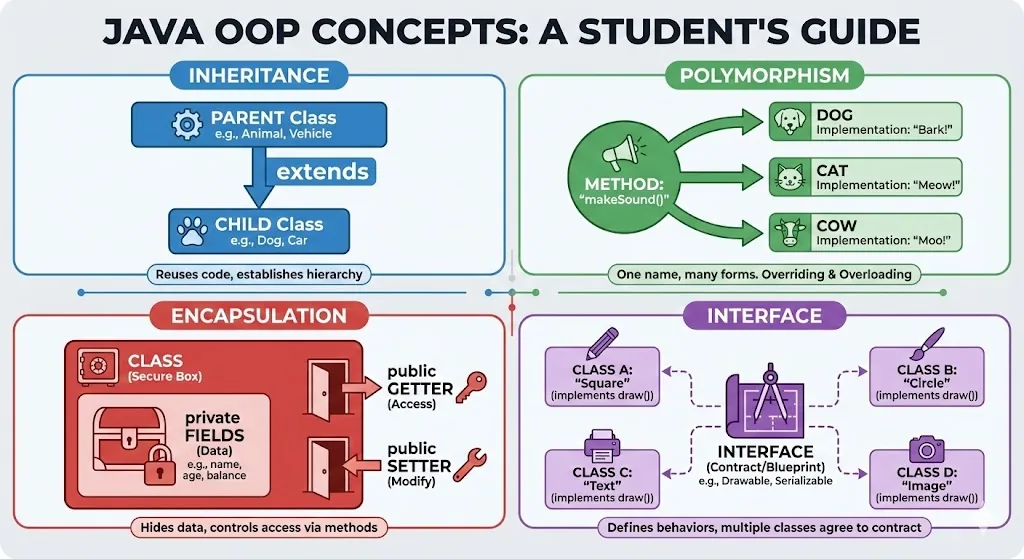
1. Visual Analogies: Making the Abstract Concrete
Definitions aren't enough. I asked Gemini to create real-world analogies for core OOP concepts.
Prompt Used:
Create a visual analogy poster explaining Java concepts using real-world comparisons:

ABSTRACT CLASS = "Blueprint of a house"
- Shows the plan, but you can't live in a blueprint
- You build a real house (subclass) from it

INTERFACE = "Job contract"
- Lists what you MUST do
- Doesn't tell you HOW to do it
- You can sign multiple contracts

POLYMORPHISM = "Universal remote"
- One button (method call)
- Different TVs respond differently
- The TV (object) decides what happens

INHERITANCE = "Family traits"
- Child gets parent's features
- Child can have their own features too

Style: Split into 4 quadrants, each with concept + real-world image + explanation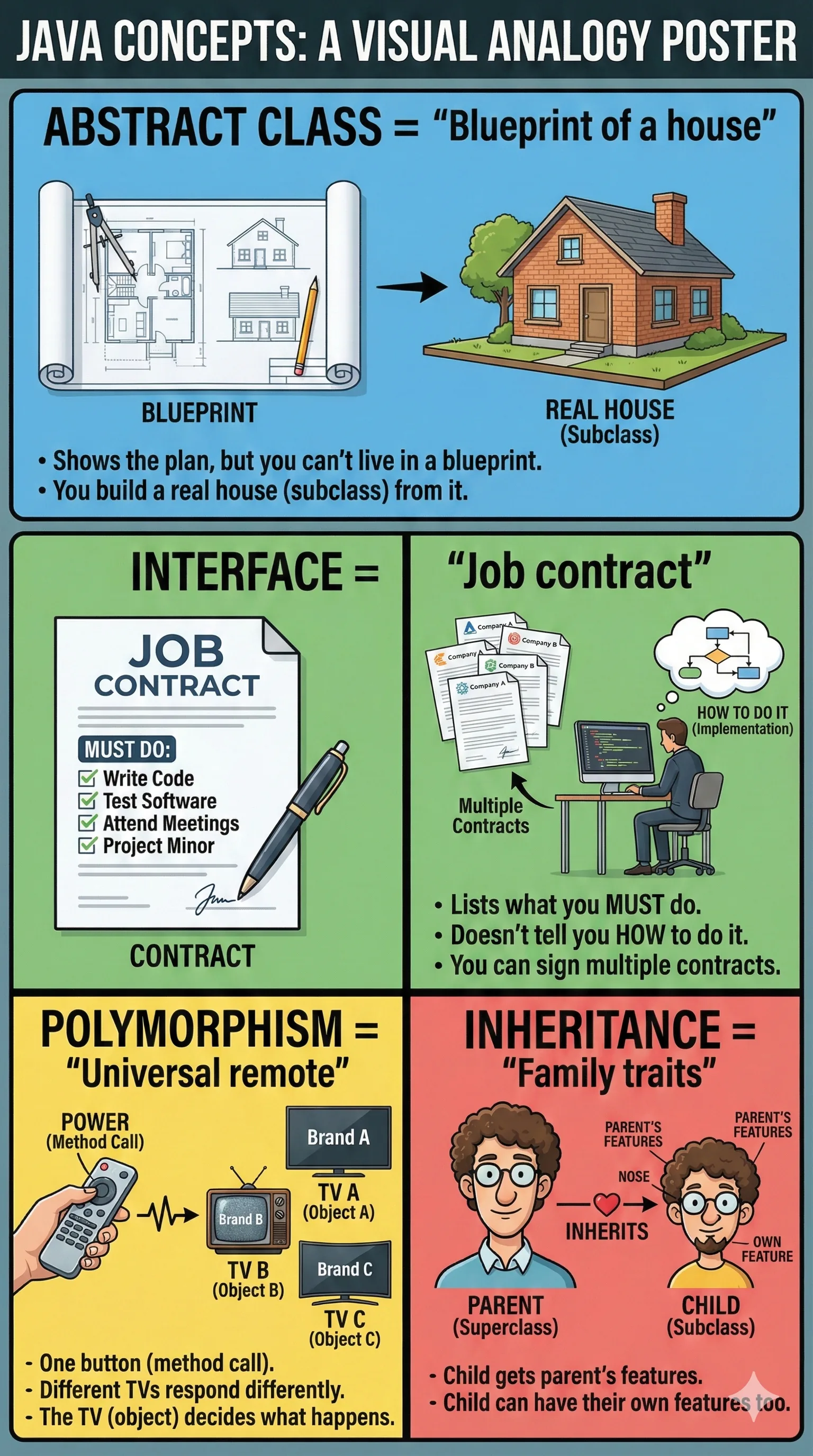
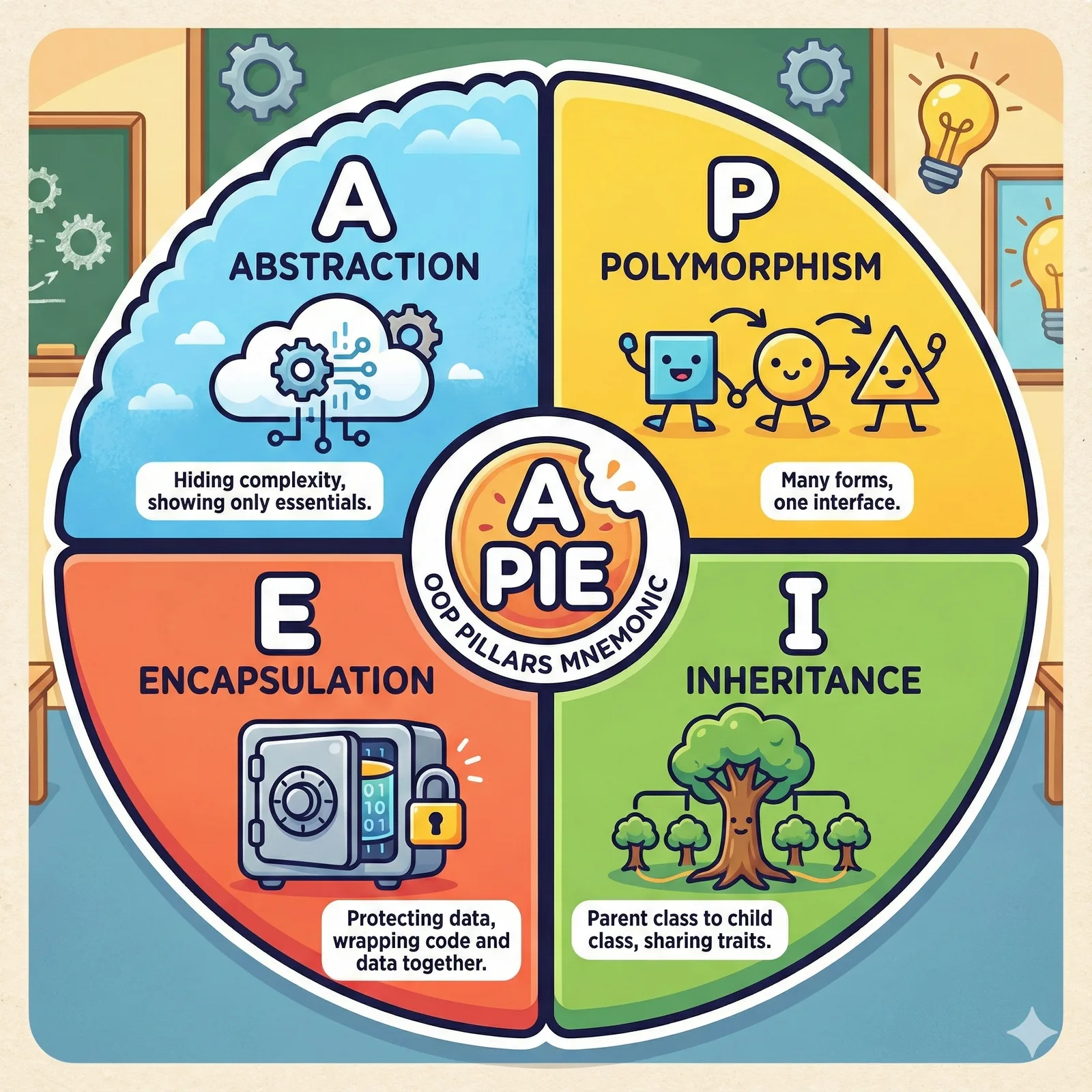
2. Mnemonics that Stick
"A PIE" is a classic mnemonic for the four pillars of OOP. Seeing it visually made it unforgettable.
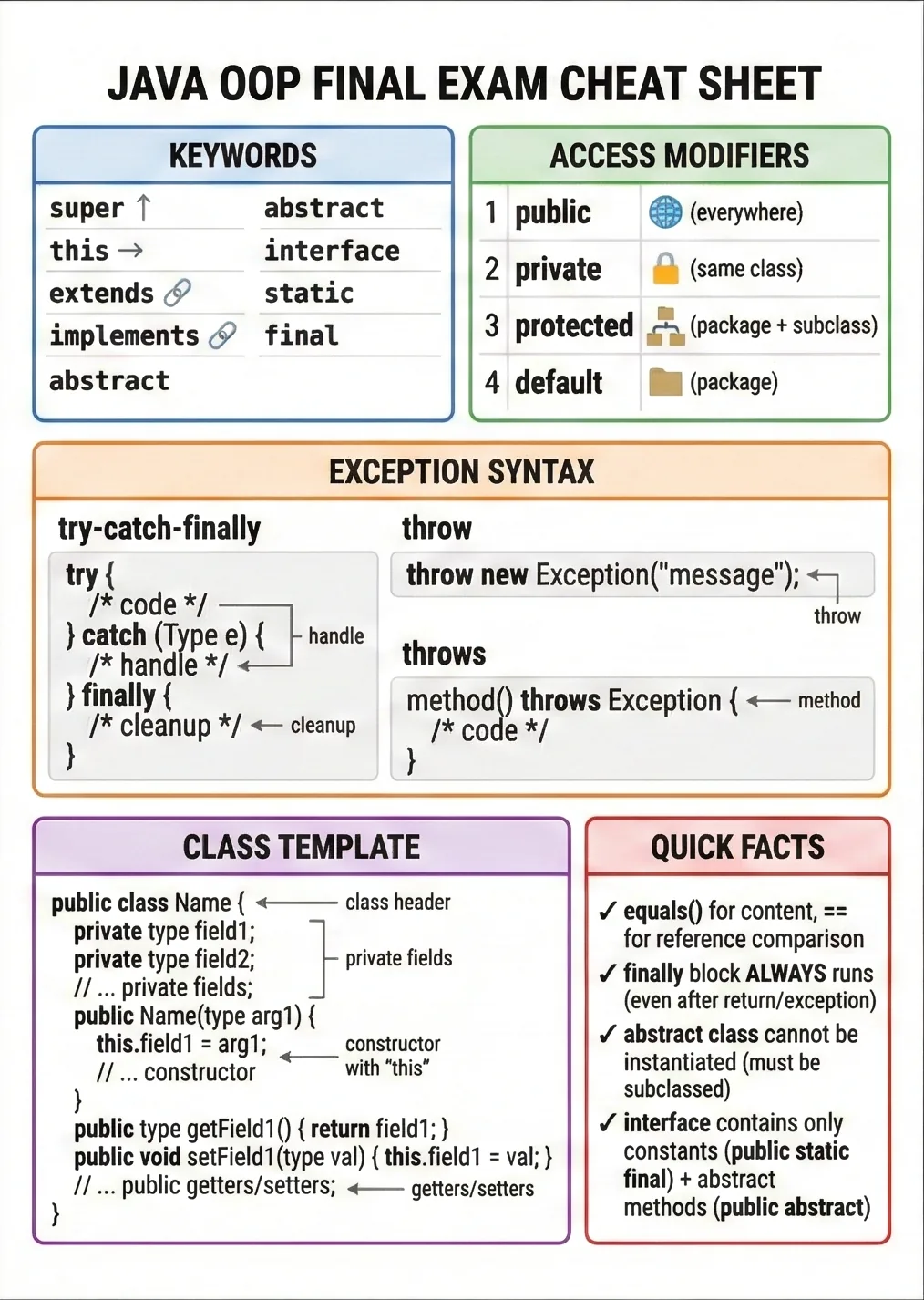
3. The Ultimate One-Page Cheat Sheet
For exam day, I needed a single page with keywords, access modifiers, and syntax.
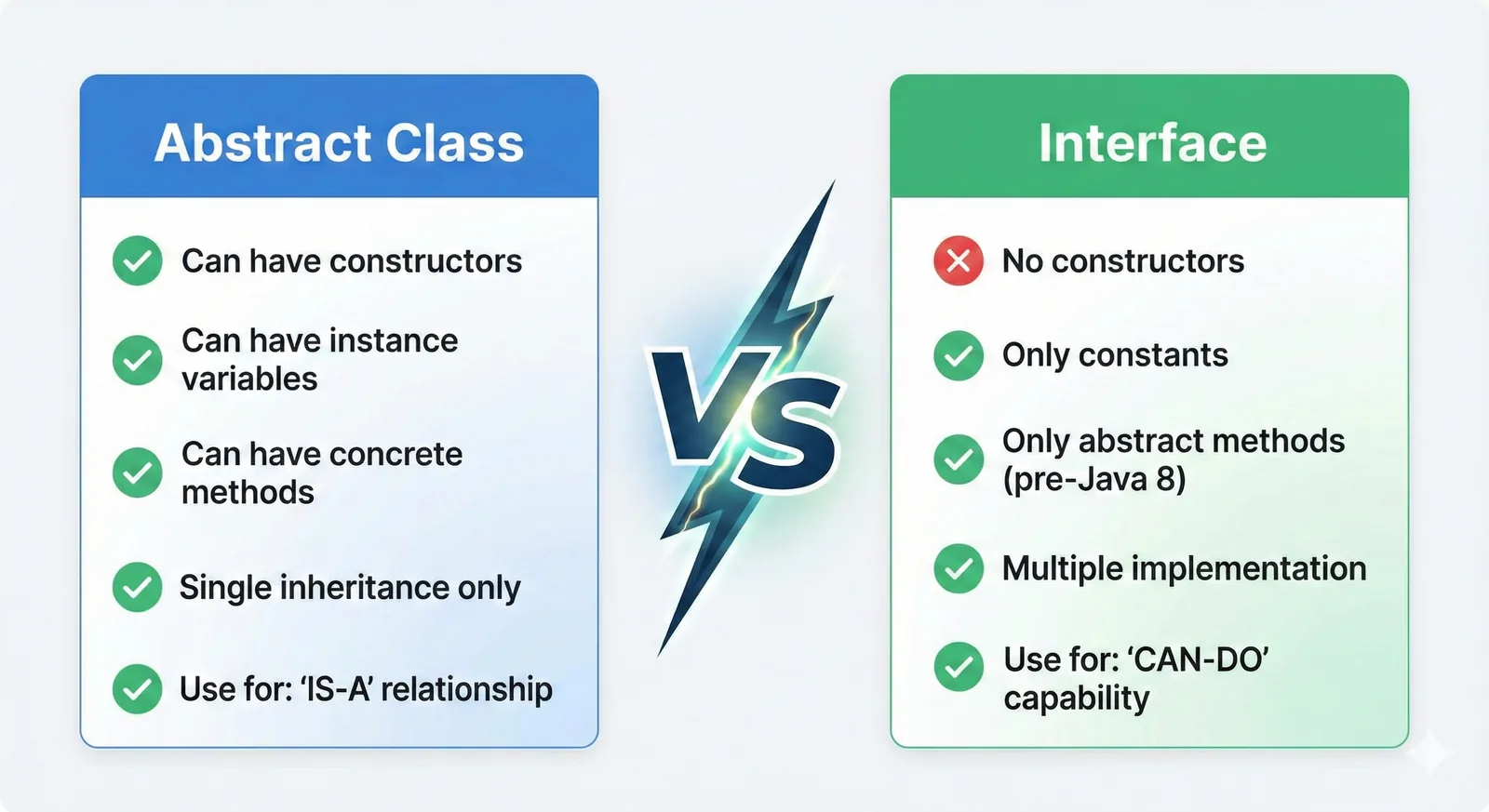
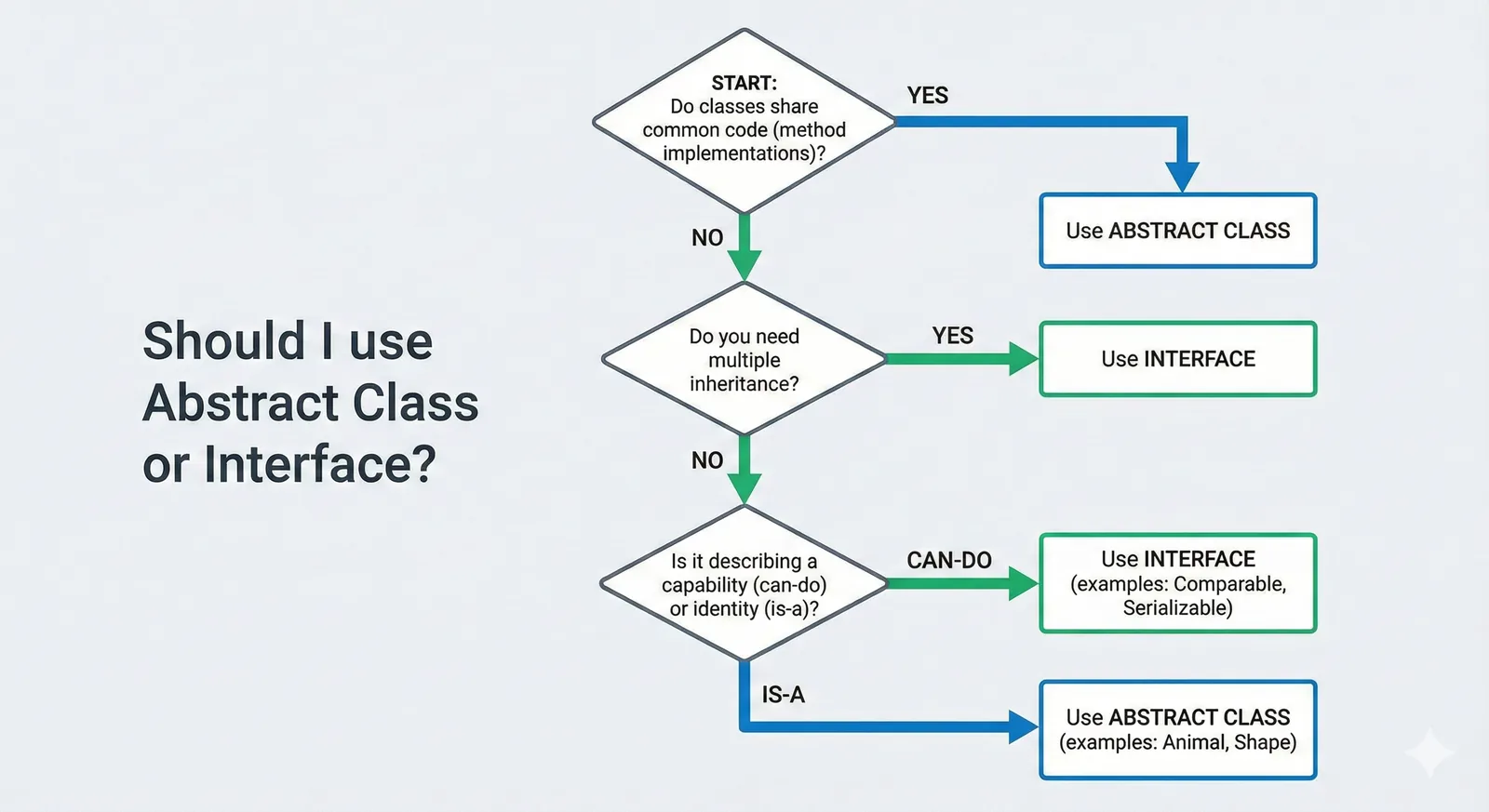
4. Comparison: Abstract Class vs. Interface
This is a classic exam question. This flowchart helps decide which one to use.
Part 2: Java Input Methods
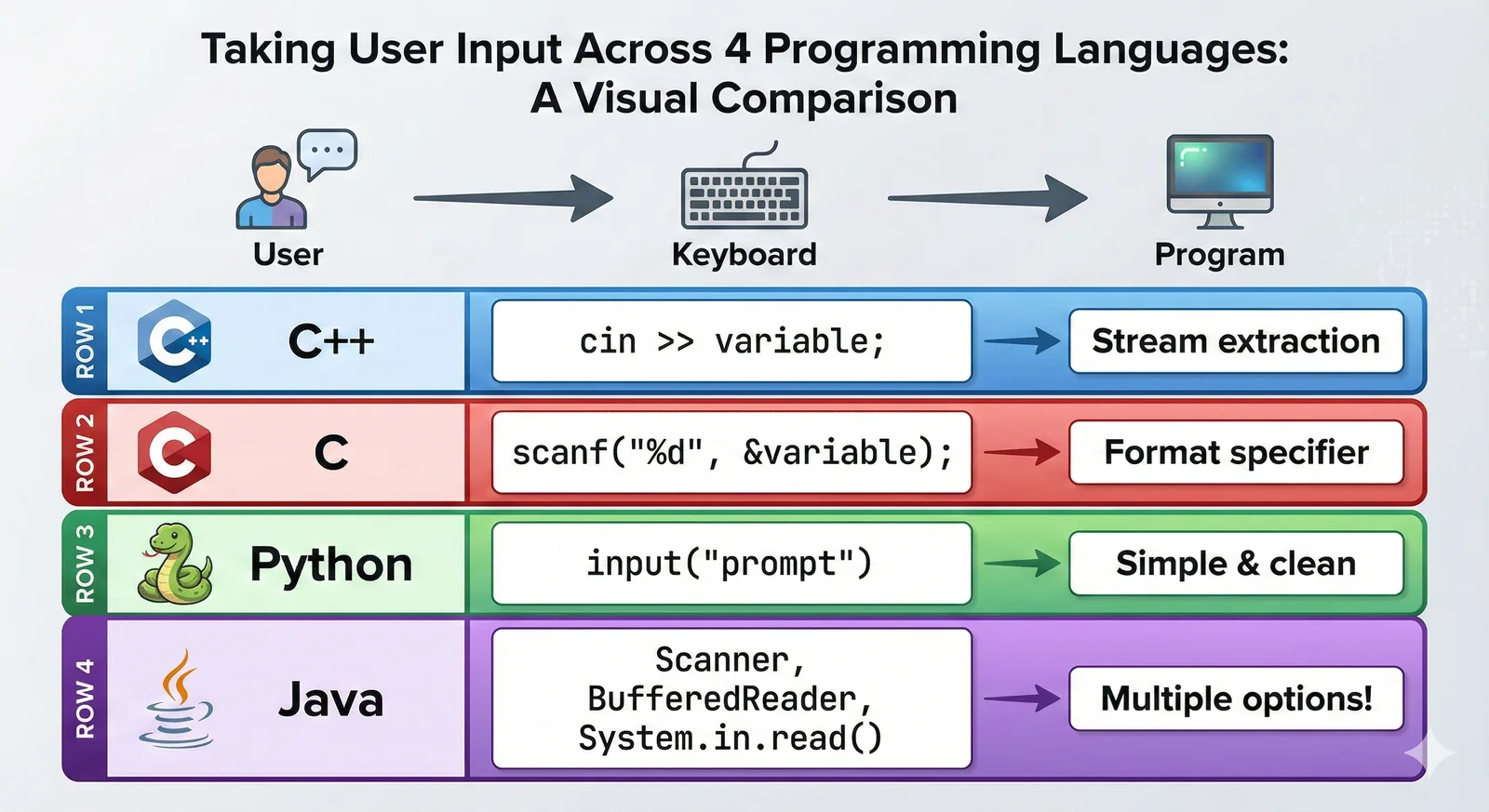
1. Comparing Input Across Languages
Understanding how Java differs from Python or C++ helped ground my knowledge.
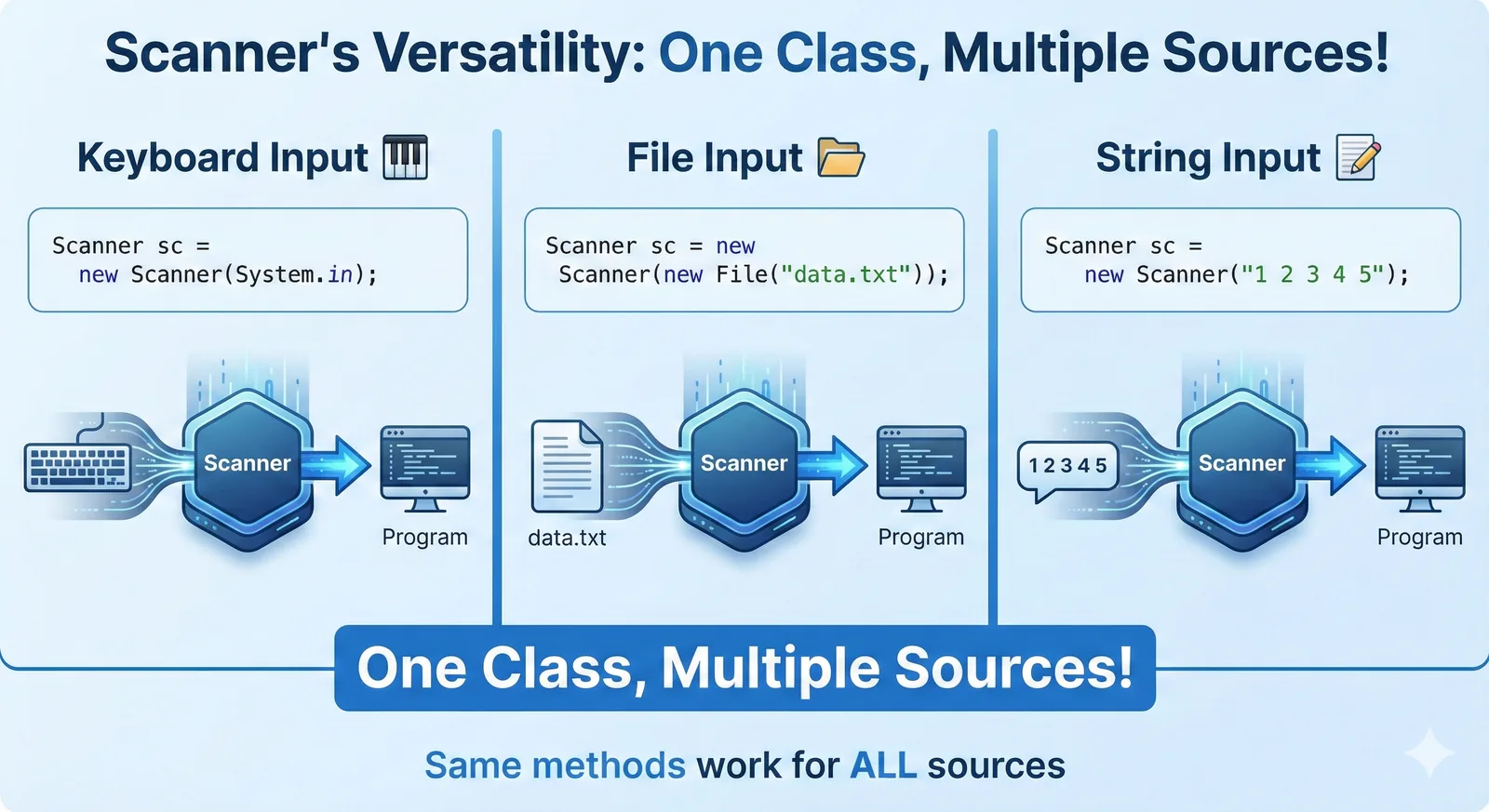
2. Mastering the Scanner Class
The Scanner class is versatile but tricky. These visuals break down its methods and sources.
Prompt Used:
Create a mind map diagram with "Scanner Class" in the center:
BRANCH 1: "Read from KEYBOARD" (System.in)
BRANCH 2: "Read from FILE" (new File)
BRANCH 3: "Read from STRING"
BRANCH 4: "Common Methods" (nextInt, nextLine)
Style: Colorful mind map, curved organic lines, icons at each branch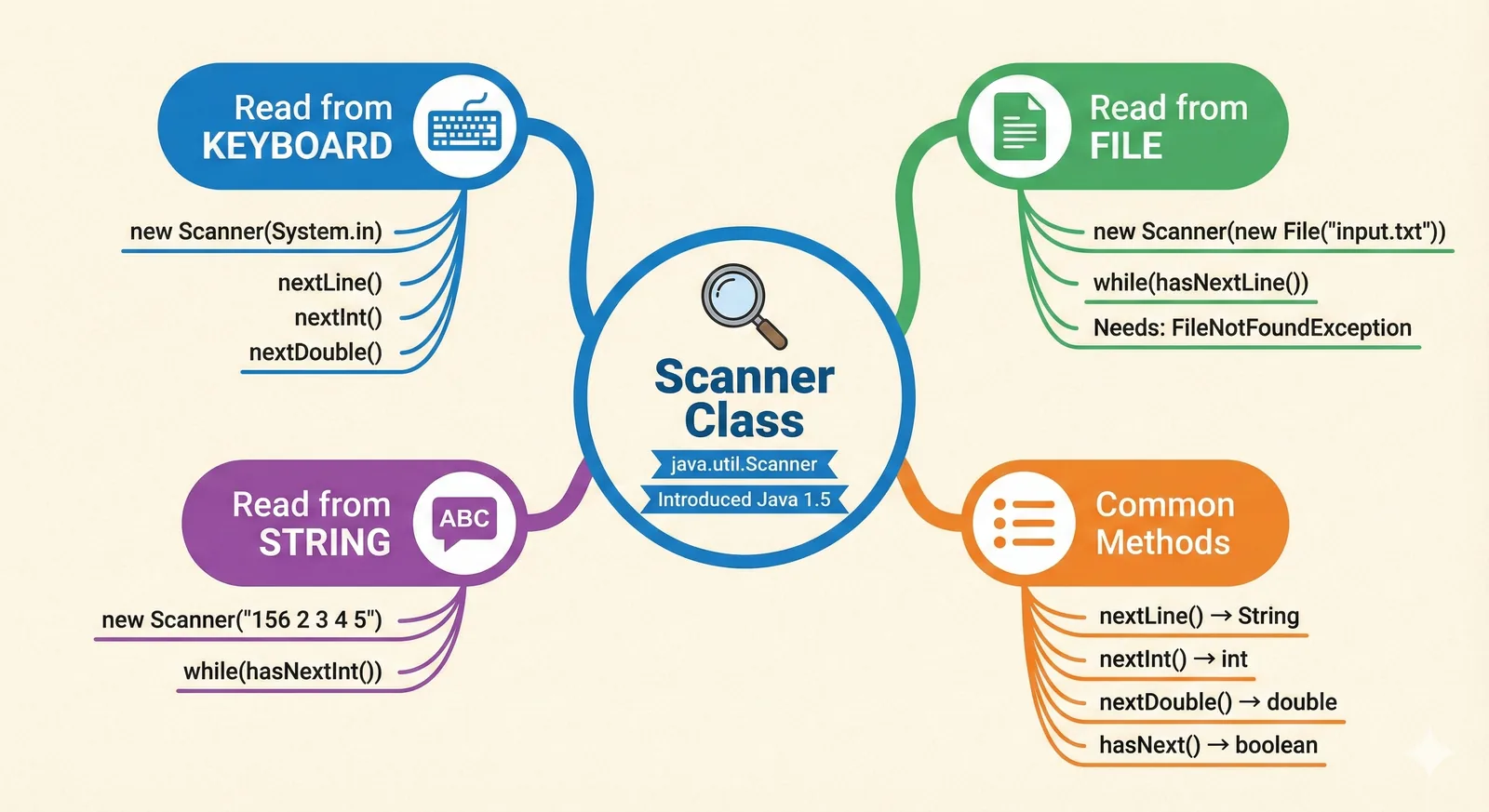
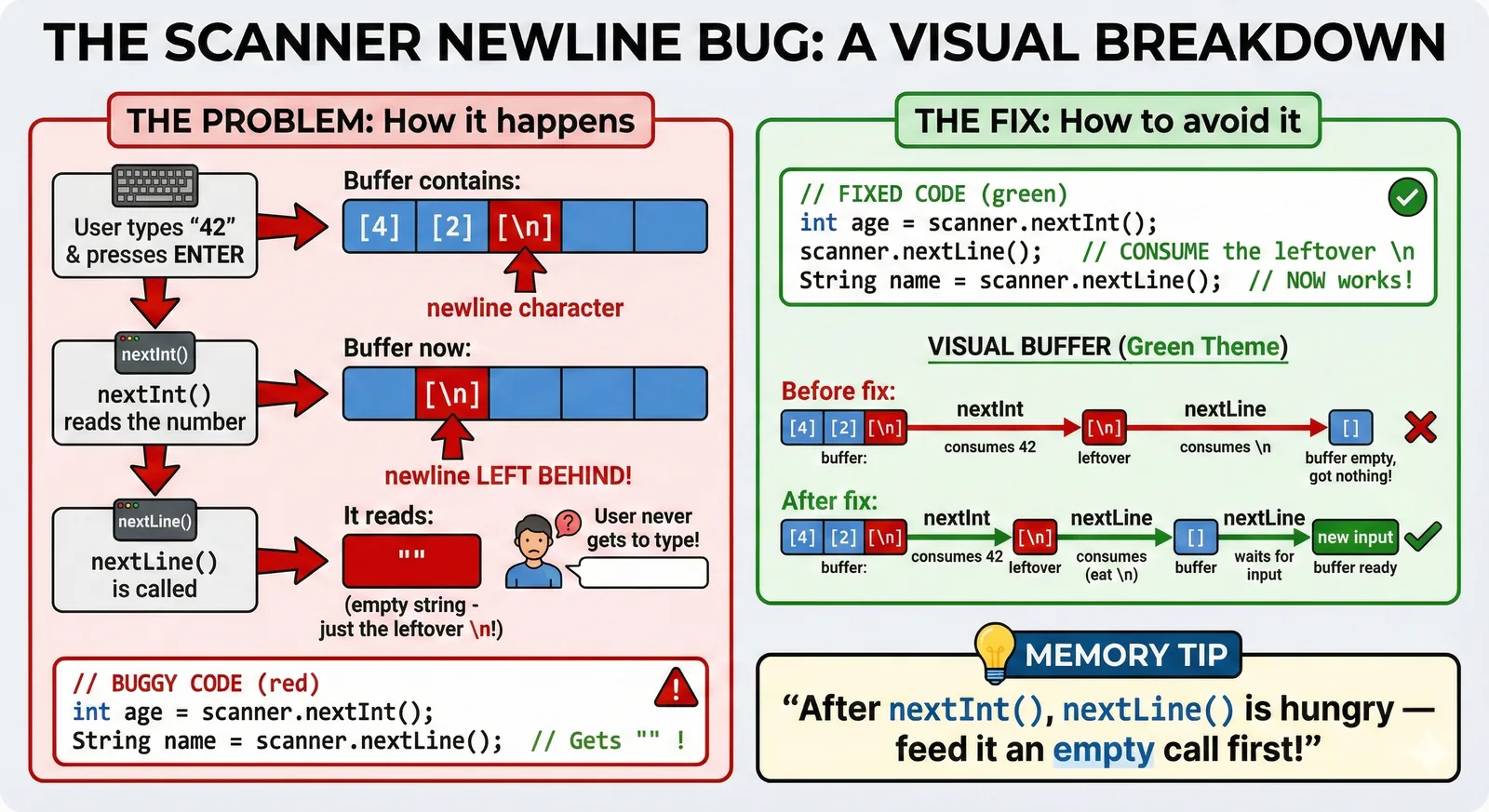
3. The "Newline Bug" Visualized
The most common Scanner mistake: mixing nextInt() and nextLine(). This poster warns you before you make the error.
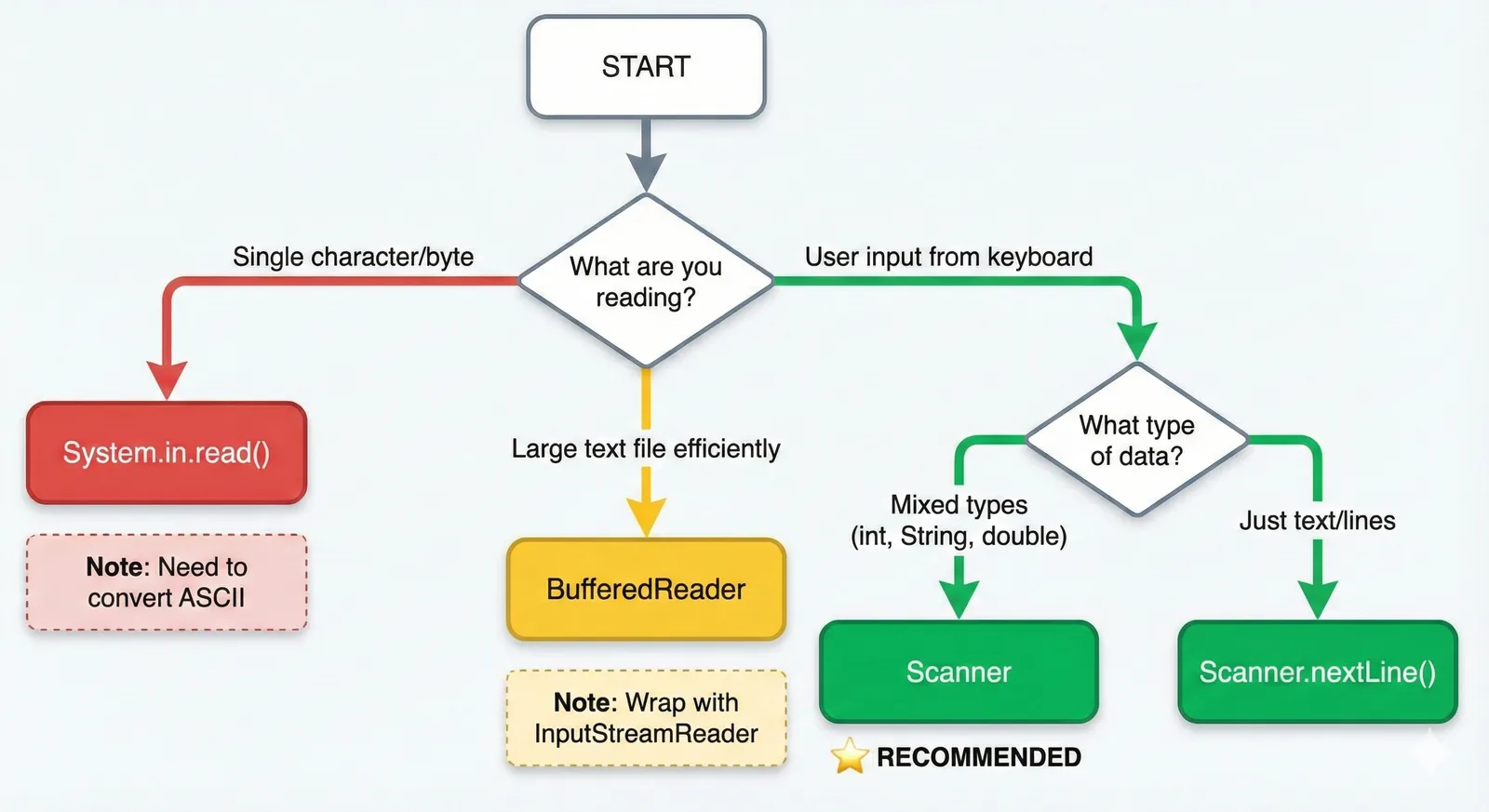
4. Which Input Method Should I Use?
Scanner vs BufferedReader vs System.in.read. This flowchart makes the choice easy.
Part 3: Java Swing & Events
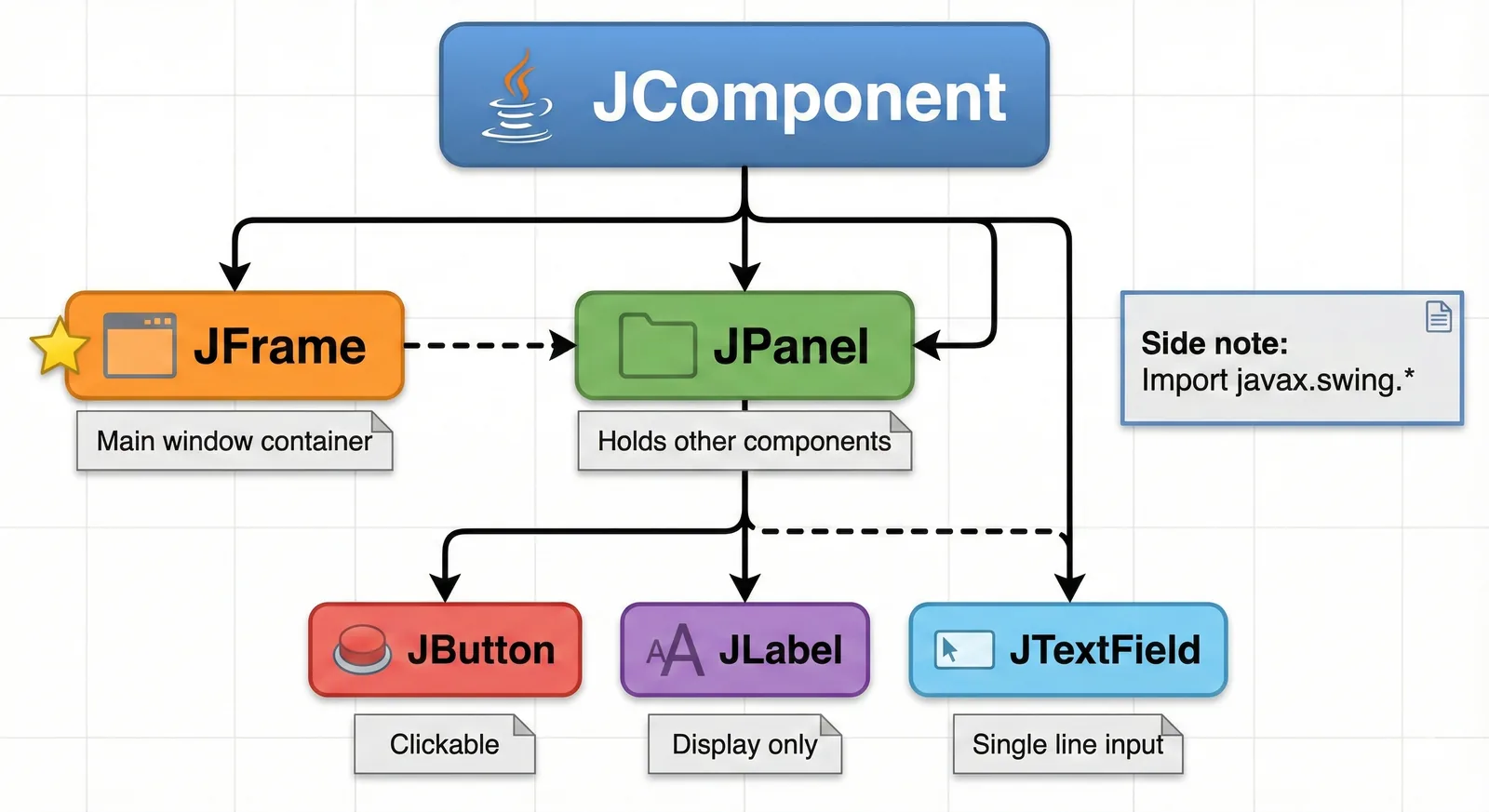
1. Understanding the Hierarchy
Swing components follow a strict parent-child relationship. This tree diagram shows how JFrames, JPanels, and components fit together.
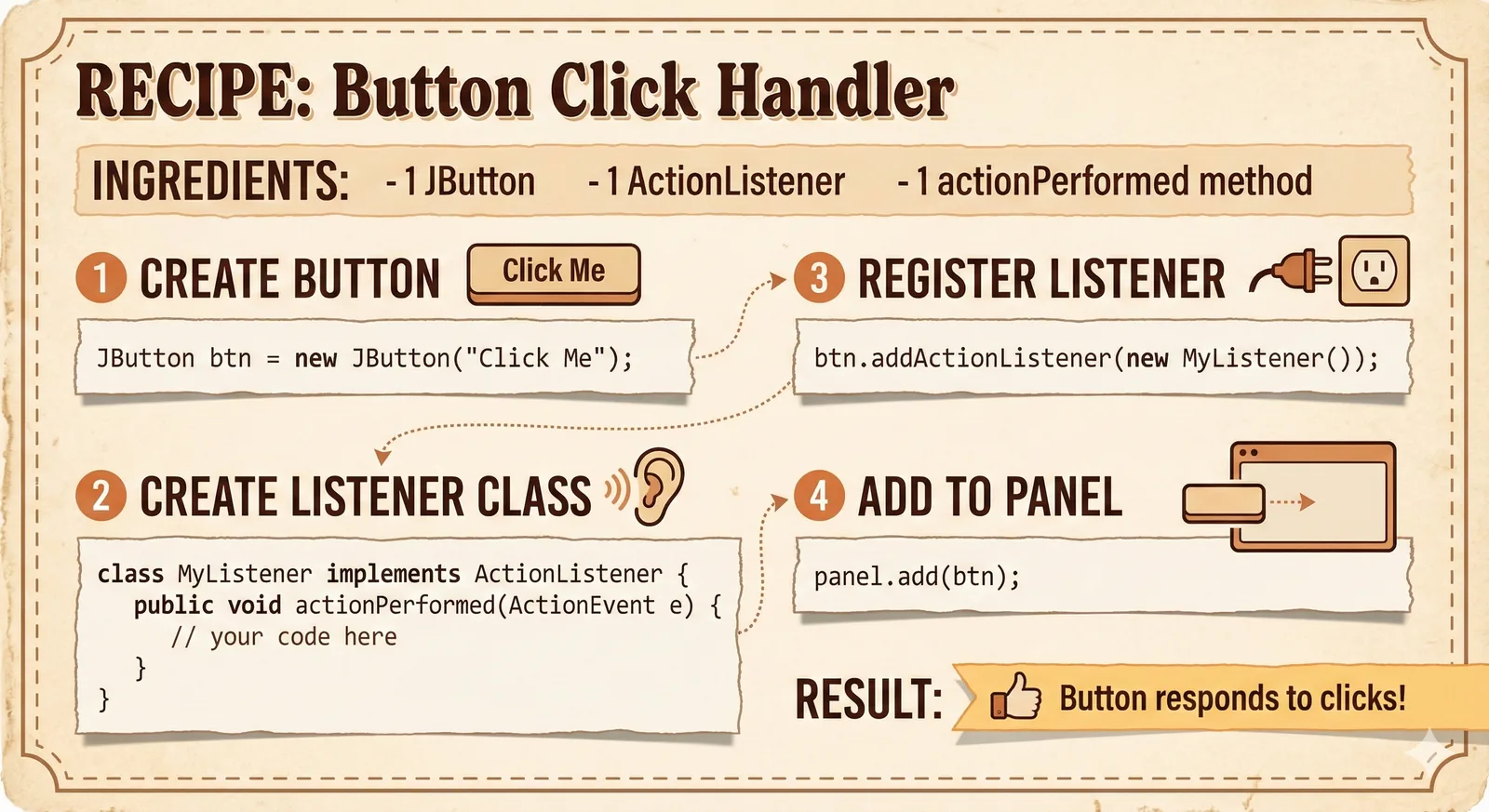
2. Demystifying ActionListeners
There are three main ways to add an event listener. This visual compares them side-by-side.
Prompt Used:
Create a 3-panel comparison showing different ways to register an ActionListener:

PANEL 1: "Named Inner Class" (Reusable, good for complex logic)
PANEL 2: "Anonymous Inner Class" (Inline, standard for simple buttons)
PANEL 3: "Lambda Expression" (Modern, shortest syntax)

Bottom comparison bar showing code length: Lambda < Anonymous < Named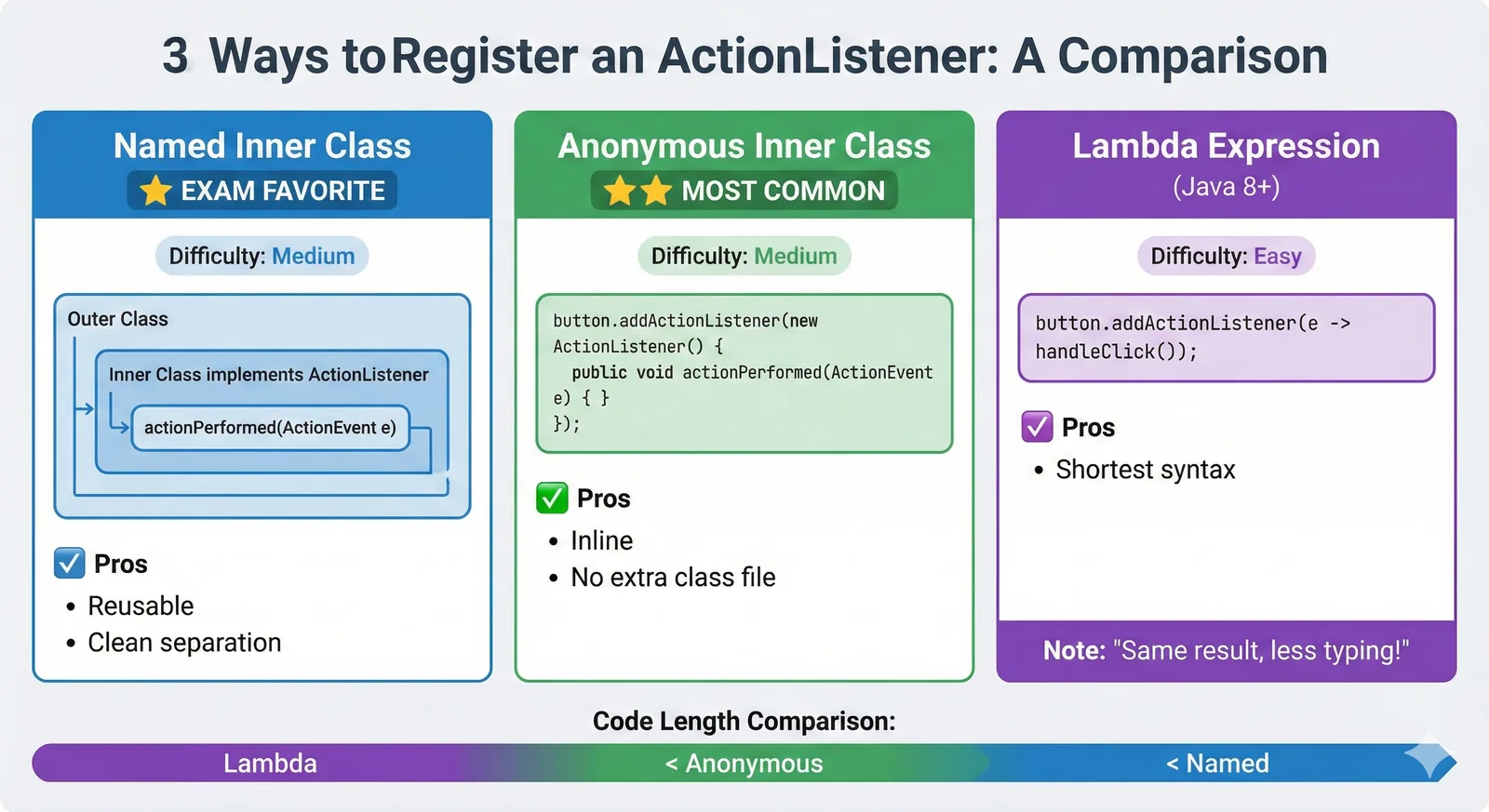
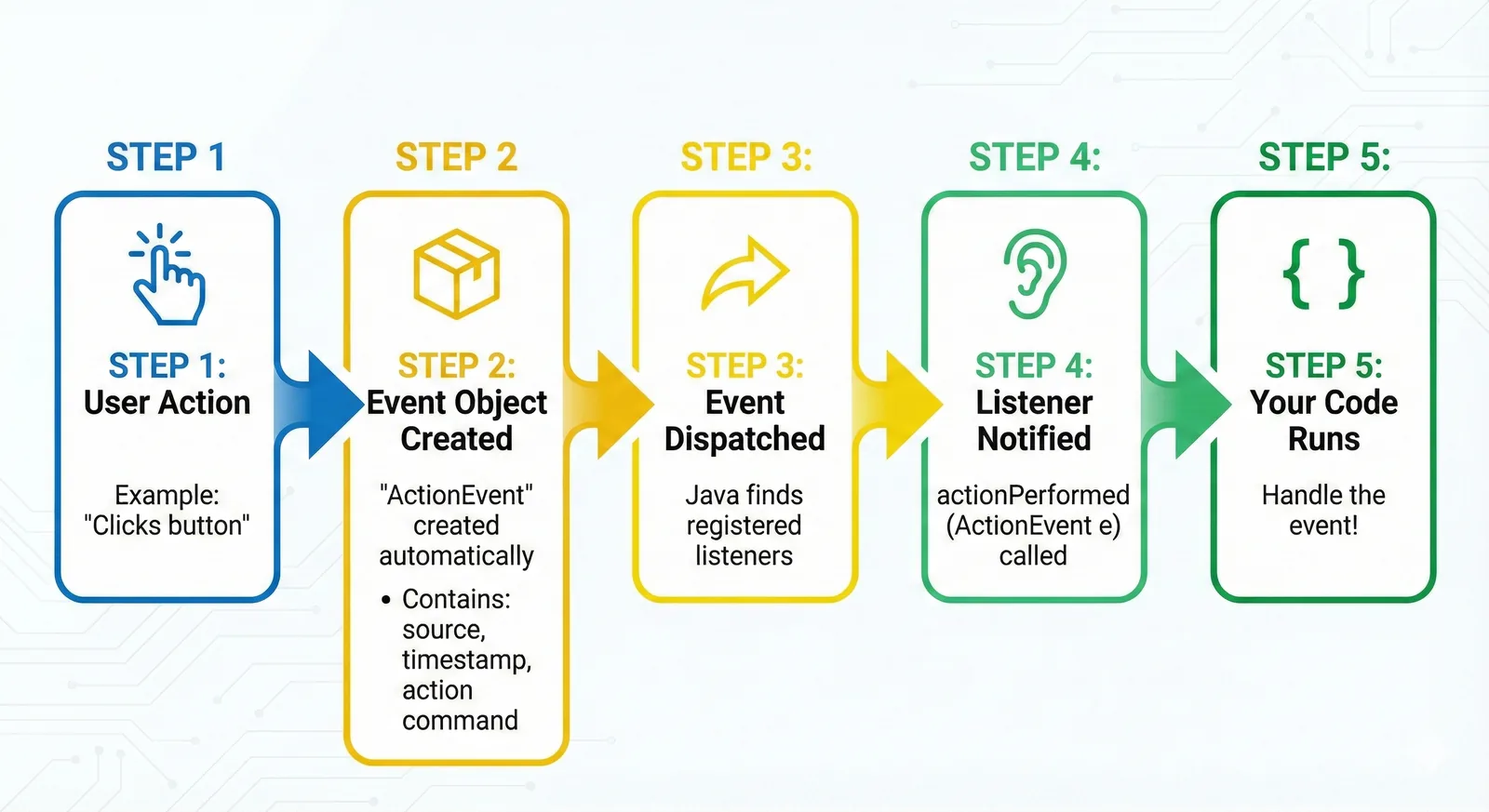
3. The Flow of an Event
What actually happens when you click a button? This flowchart traces the path from "User Action" to "Code Execution".
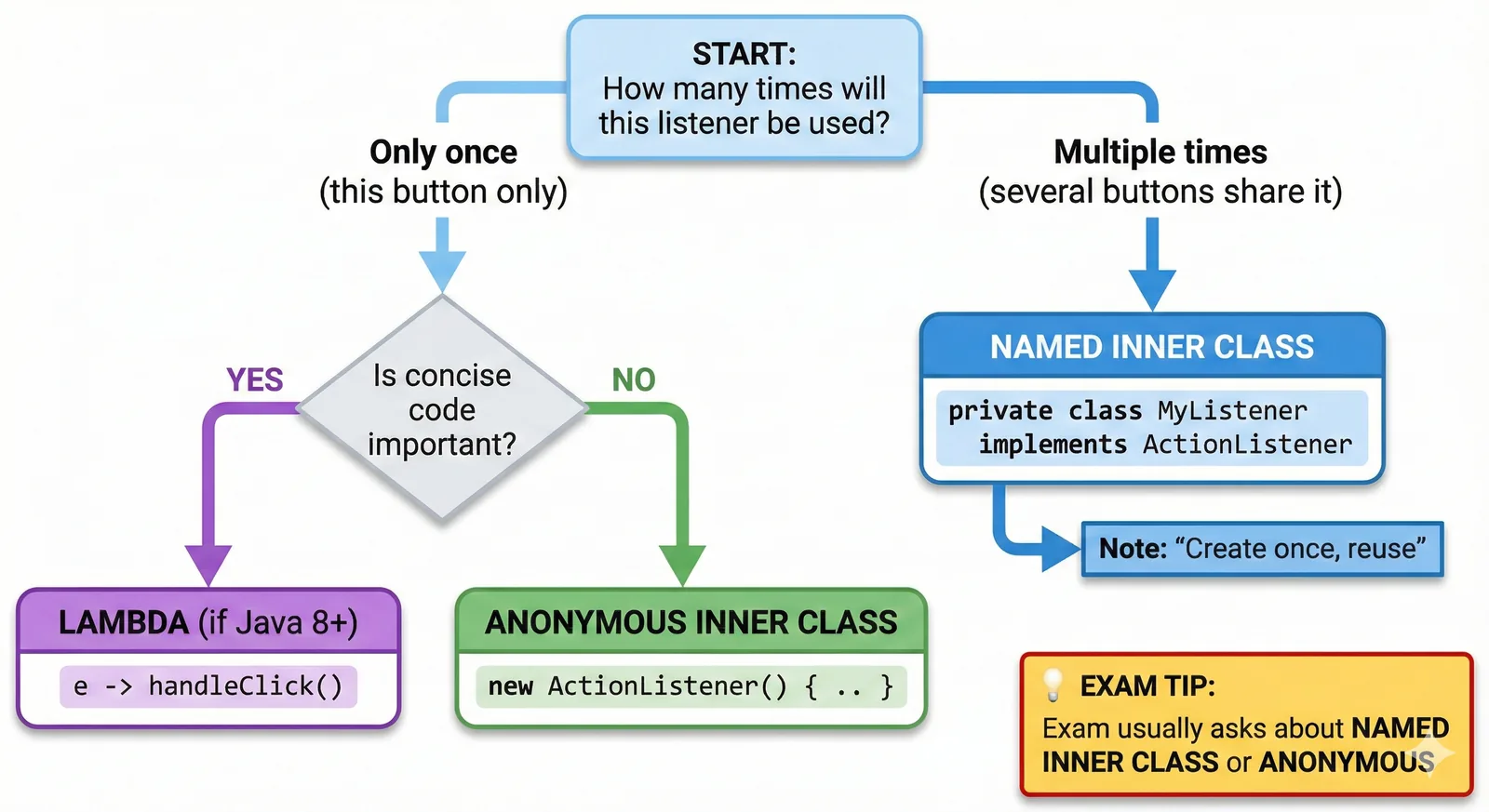
4. Which Listener Pattern?
Should you use an anonymous class or a lambda? Use this decision tree to pick the right tool for the job.
How You Can Do This
The power here isn't just in these specific images—it's in the method. You can use Gemini (or other AI image tools) to visualize Biology processes, History timelines, or Physics concepts.
The Formula for a Good Visual Prompt:
- Define the content: List exactly what text/concepts need to be on the image.
- Describe the layout: "Split screen", "Flowchart", "4 quadrants", "Mind map".
- Specify the style: "Clean infographic", "Hand-drawn aesthetic", "IKEA instruction style".
- Ask for refinement: If the text comes out garbled, ask it to "Make it simpler" or focus on the structure.
Conclusion
Turning text into images forced me to organize my thoughts and identify exactly what I didn't understand. Whether you're prepping for an OOP exam, wrestling with Swing listeners, or debugging Scanner inputs, try "visual prompting" your way through it.
Good luck with your exams!
About CaptainSolo
Web developer, videographer, and content creator based in Brampton, ON. I build full-stack web applications, create video content, and help businesses establish their online presence. Passionate about sharing knowledge through blog posts and tutorials.
View Portfolio →Get in Touch →Keep reading
How to Optimize Studying: Ultimate Guide for University & High School Students
Learn proven study optimization techniques for university and high school students. From time management to active recall, discover how to study smarter and achieve better grades.
10 AI Tools That Boost Your Creative Workflow in 2025
Discover 10 powerful AI tools that boost your creative workflow. From coding to design, video editing to writing - transform how you work with AI.
AI Tools for Videography: Transform Your Video Production Workflow
Discover AI tools that transform videography workflows. From automated editing to AI color grading, learn how to use AI in video production.